
Your Cloud Backup Won’t Save You: Independent MariaDB Backups with Databasus

Your cloud provider has backups. Your provider can also go dark for hours, lock your account by mistake, or lose a whole region. When that happens, the backups go dark with it.
That is why we recently added Databasus to MariaDB EcoHub. Databasus is an open source tool for scheduled MariaDB backups to S3 and many other storages. This article shows how to set it up.
First, though, the backup basics that matter no matter which tool you use.
What backups are for
Backups usually serve one of two goals: rolling back after data corruption, or recovering after an infrastructure emergency.
Data corruption is when someone ran a harmful query, there was an SQL injection, or a migration went wrong. You need to look at an earlier state of the database, take some data from it and fix the current DB without a full restore.
Infrastructure emergency is when the whole server or cloud hosting your database disappears. Your AWS account gets blocked by mistake, or your data center loses power. You can’t wait days for the infrastructure to come back. You need an independent copy you can restore somewhere else.
Keep these two cases in mind as we look at how and why to make backups.
Managed DBs or only self-hosted?
Both.
There are 2 ways to run MariaDB:
- self-hosted, on a virtual machine, bare metal server or Kubernetes;
- managed, in MariaDB Cloud or AWS/GCP managed databases.
In both cases, backups are ultimately your responsibility.
When you self-host, you are the only one responsible for the DB, backups included.
A managed DB usually has backups built in. But you still depend on the cloud. Its backups protect you from data corruption as long as you can reach the cloud and create a new DB from them.
When the whole cloud has issues, and major providers have had large outages in recent years, you can only wait. Account blocks, freezes, human error and legal issues can also cut you off from your DB. Cloud backups are stuck inside the cloud.
So it’s always worth having an independent backup outside of it. Better to never need it than to need it and not have it. It’s usually cheap, too.
What to keep in mind when making backups
Backups should exist. Keep at least some backups. That’s step one.
Keep backups independent of the DB’s infrastructure. Don’t store backups next to your primary DB: if that infrastructure goes down, your backups can become unreachable too.
Bad patterns, for example:
- keeping backups on the same virtual machine as the DB;
- keeping backups in the same region as the DB (like an EC2 VM and a managed DB both in
us-west-1). If the region goes down, the backups go down with the DB; - keeping backups in only one cloud. Keep a second copy in another cloud, or at least on your own machine.
Test your restores. A backup that has never been restored is not proven to work.
Test them regularly. Without a written runbook for emergencies, you may find out too late that you can’t recover at all.
How Databasus helps
Databasus is an open source tool that runs backups on a schedule. You tell it which DB to back up, where to store backups (S3, FTP, NAS, etc.) and how often (hourly, daily, custom schedule, etc.).
It is a popular open source backup project on GitHub, and MariaDB is one of its focus databases. That is why it’s in our catalog.
Here’s how to set it up.
1. Install Databasus
Install Databasus on your server. The usual way is Docker Compose (for other options, like an install script or Helm, see the installation docs):
services:
  databasus:
    container_name: databasus
    image: databasus/databasus:latest
    ports:
      - "4005:4005"
    volumes:
      - ./databasus-data:/databasus-data
    restart: unless-stopped
For production, pin a specific release tag instead of latest.
Then run docker compose up -d and open http://<your-server>:4005 in your browser. You’ll see the sign-up screen:
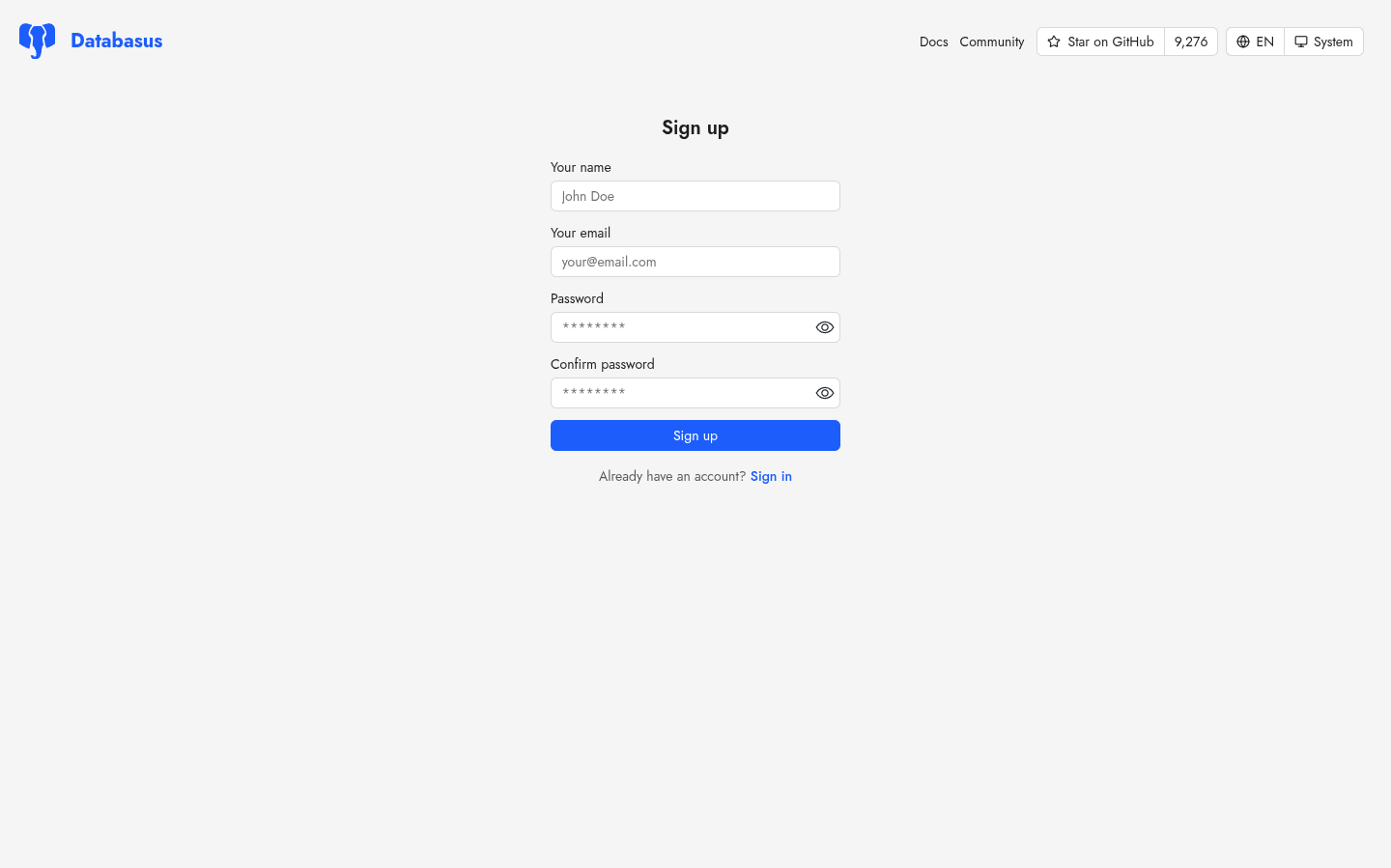
If you work alone, you can disable sign-up after creating your account. If you have a team, you can run several separate teams, each with access only to its own databases. Audit logs show who changed what and who downloaded which backups.
2. Add the database
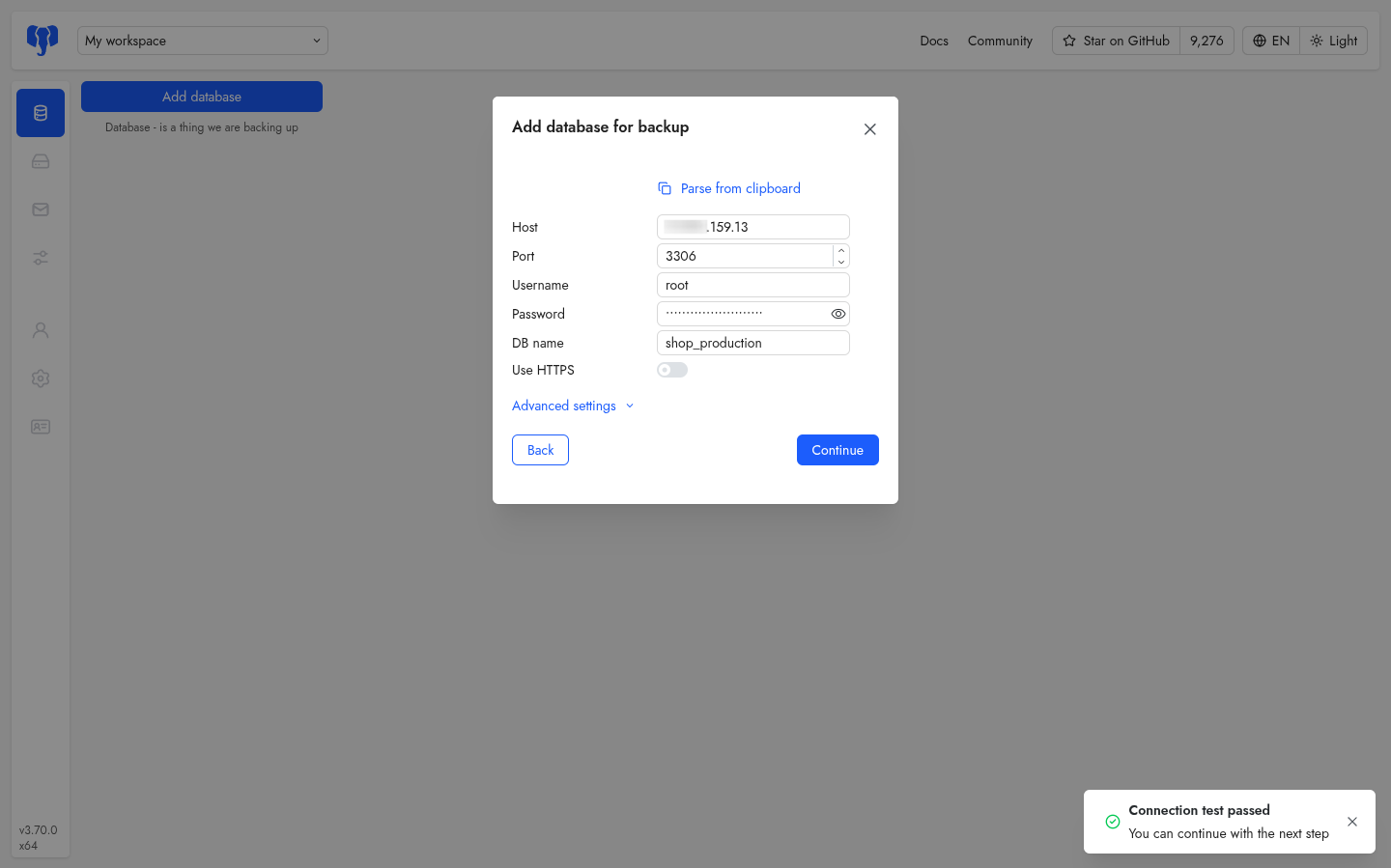
Create a workspace and add your database to it.
You need the address, DB name and credentials. Databasus will suggest creating a read-only user for backups, since it doesn’t need write access or anything higher.
If your DB isn’t publicly accessible, you can connect through an SSH tunnel.
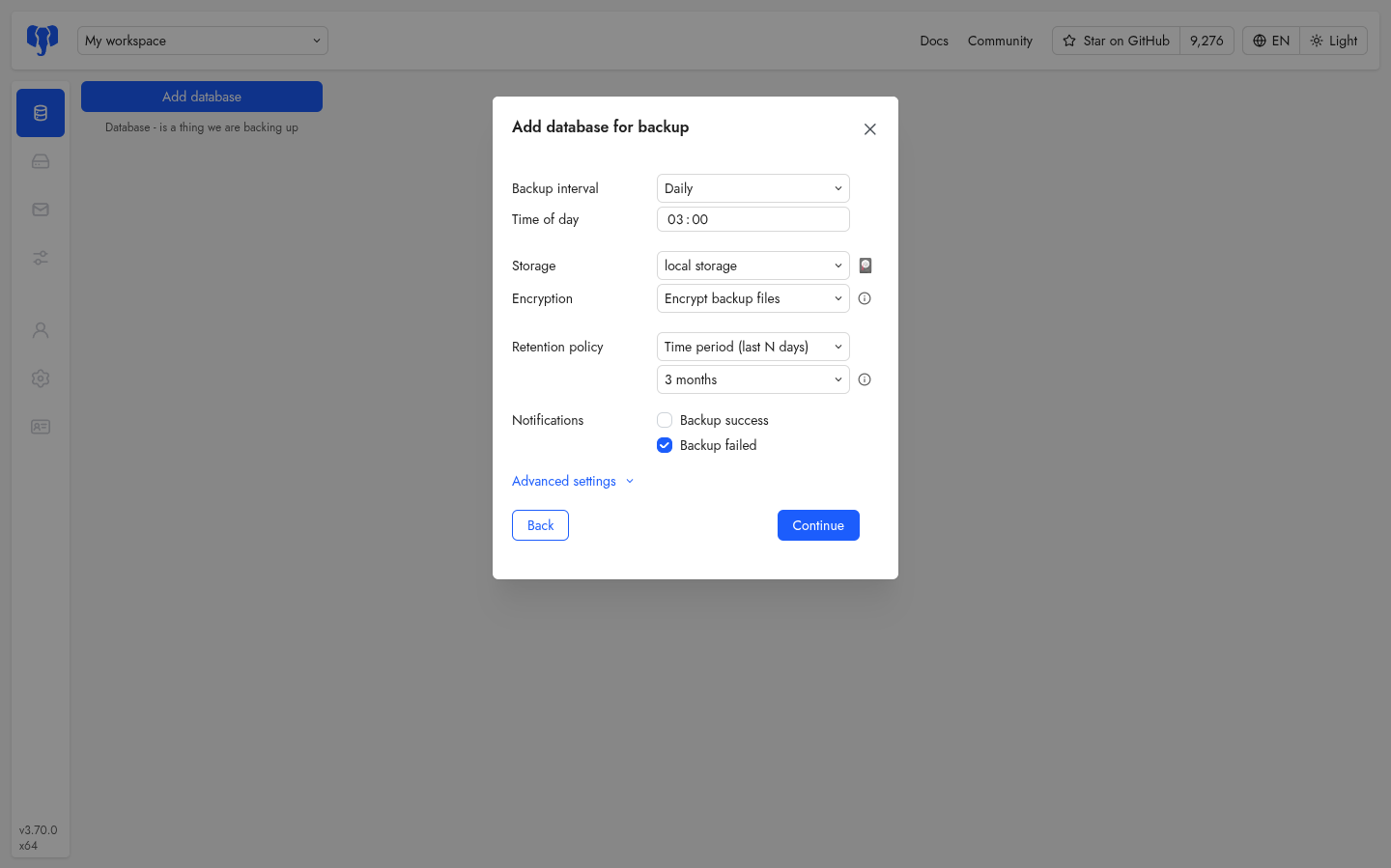
3. Configure the schedule and storage
In most cases, the best choice is the “GFS” strategy: keep daily backups for the last 7 days, 4 weekly backups and 12 monthly ones. You get fine enough granularity without using too much space.
Then pick where to send backups. Usually that’s S3, but you can also store them locally, via FTP, on a NAS and more. See the full list of supported storages.
4. Set up notifications
Choose how you want to hear about failures.
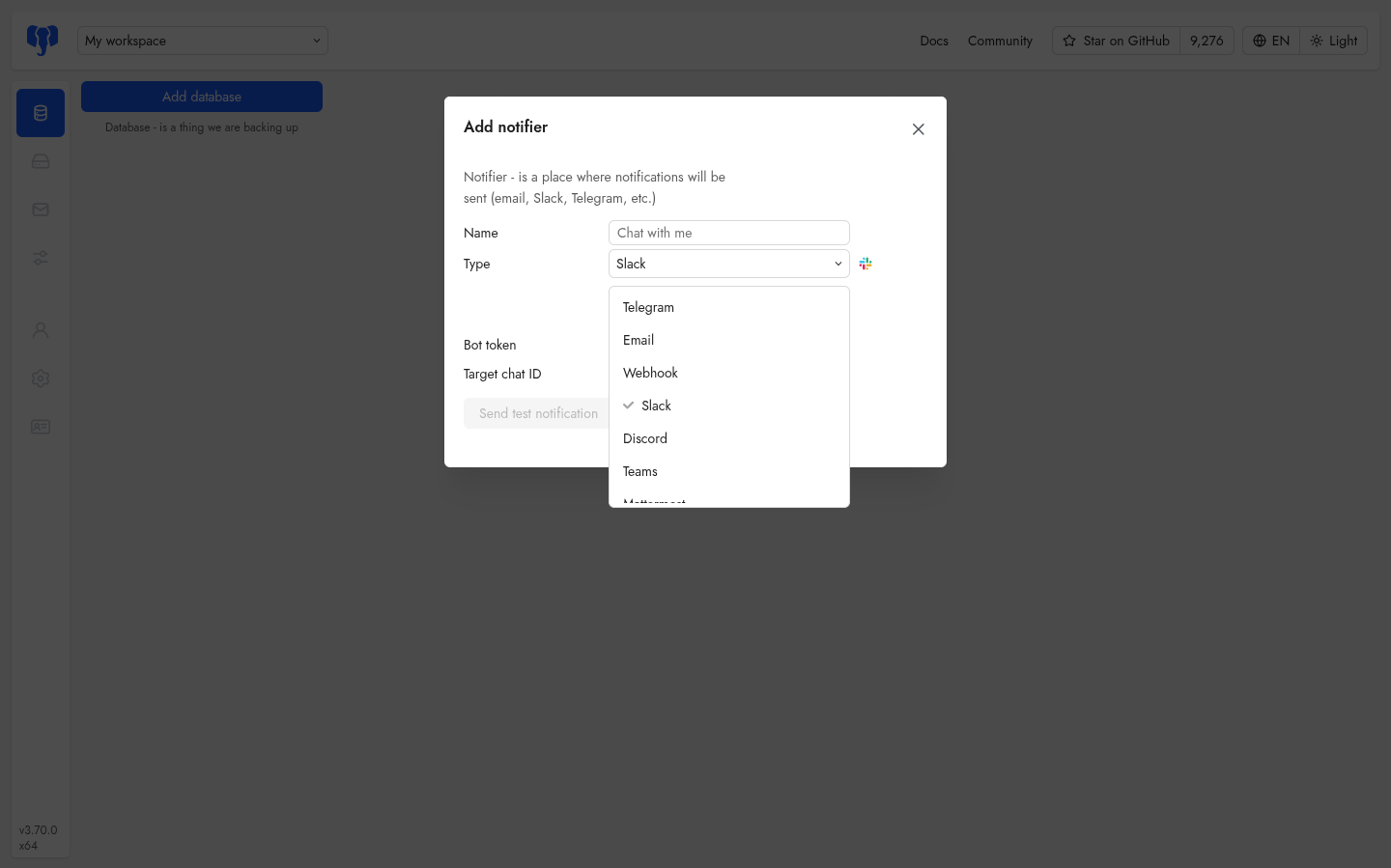
Backups sometimes fail, and you need to know when they do: the DB is unreachable, the network drops, and so on. Databasus can notify you via email, Slack, Discord or other channels after a couple of consecutive failures.
That’s it. Your backups are running.
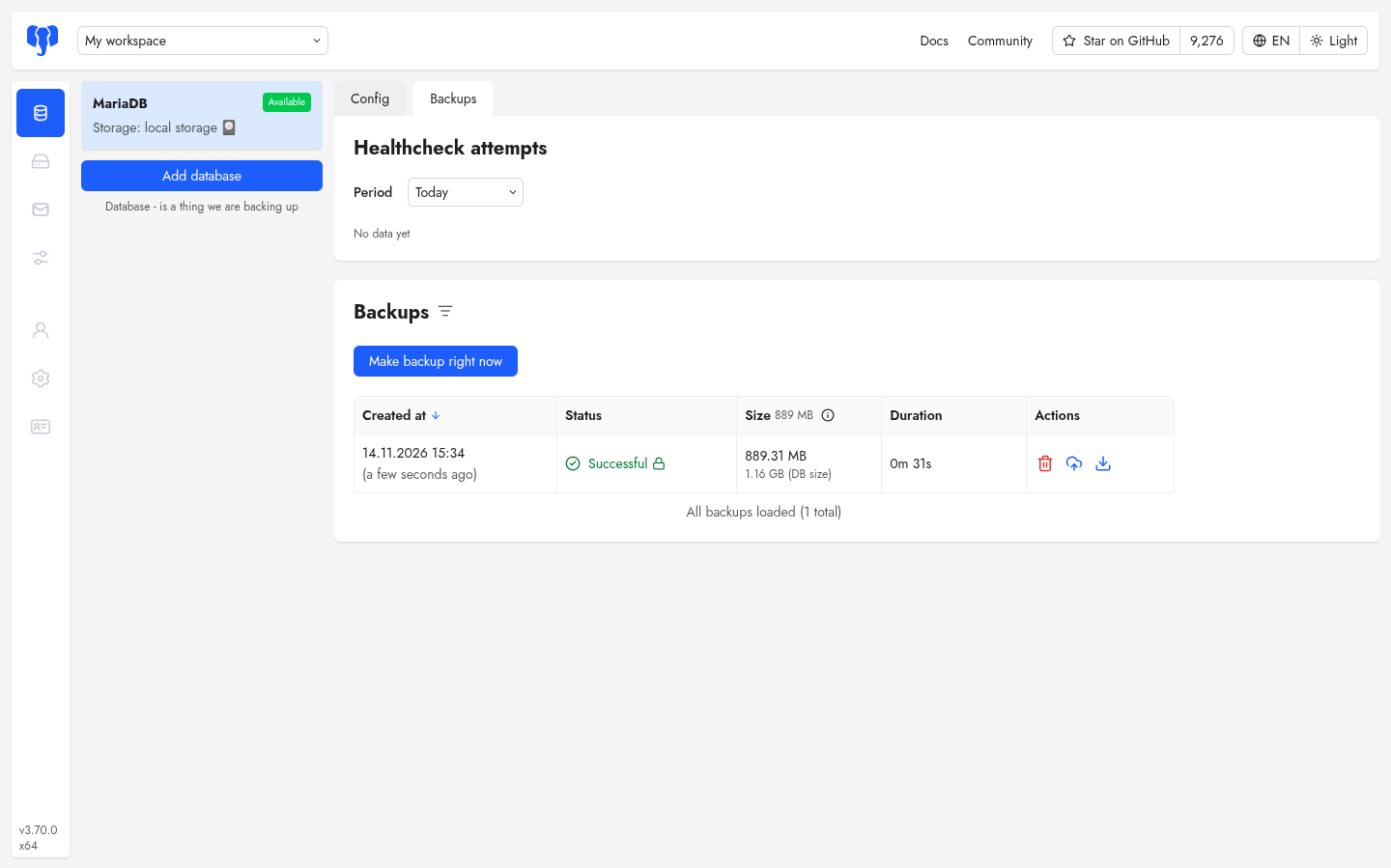
5. Restore when needed
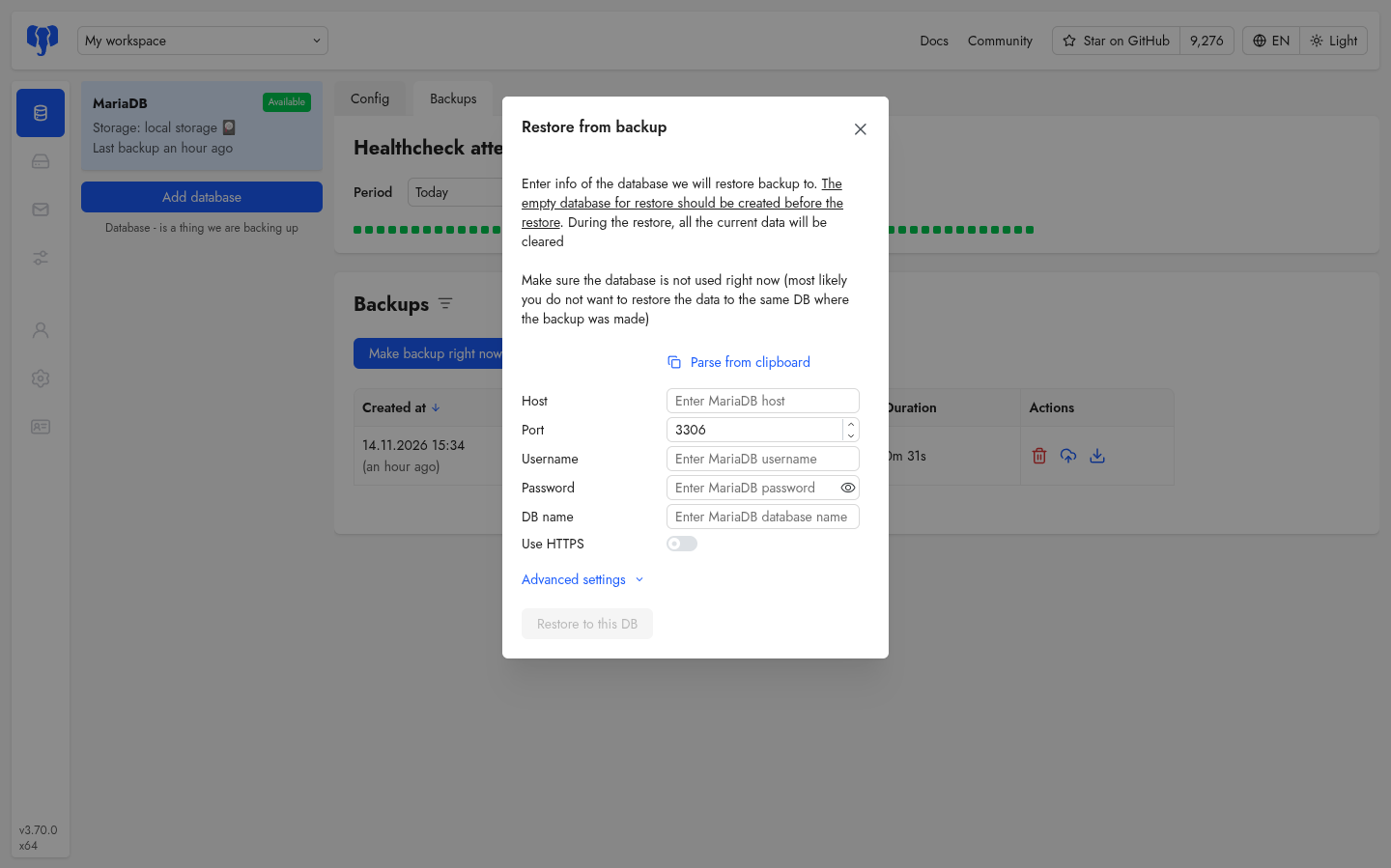
To restore, click “Restore” or just download the backup. Databasus can restore it into an empty DB:
Before you close this tab
Remember the rule from earlier: a backup you’ve never restored is a backup you can’t trust. Once your first backup finishes, restore it into an empty database and check the data. Then write down the steps. That’s your runbook.
Find Databasus in MariaDB EcoHub and on GitHub.
Leave a Reply